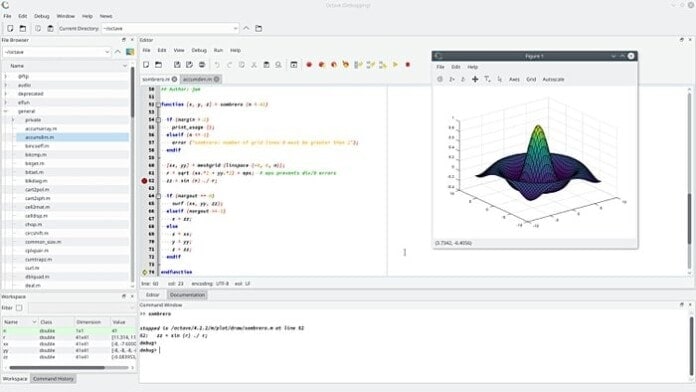
GNU Octave is a high-level programming scripting language for numerical computations. It’s a free software which runs on Linux, Windows, BSD, MacOS, etc. This scientific programming language uses for solving linear and nonlinear mathematical problem and other various numerical experiments which is compatible with MATLAB scripts. It provides powerful mathematics-oriented syntax with built-in arranging and visualization tools. GNU Octave is considered as one of the best free alternatives to MATLAB.
GNU Octave interpreter can be used as a CLI, GUI or even as part of shell script. This programming language is written in C++ using the C++ standard library.
How to Install GNU Octave in Ubuntu Linux
In this quick tutorial, I show you how to install the latest GNU Octave in Ubuntu Linux. Though Ubuntu software center provides GNU Octave repository, it’s an old version.
There is not any official or unofficial PPA containing latest Octave, but still, you can get this newest software version via a flatpak repository. Flatpak is a universal app repository which can be used across the Linux distros similar to Snap.
Open the Terminal (Ctrl+Alt+T) and run the following command to enable the flatpak framework:
sudo apt-get install flatpak
If you are on older Ubuntu version or Ubuntu 16.04, then you have to run an additional command to get the support of flatpak app.
flatpak remote-add --if-not-exists flathub href="https://flathub.org/repo/flathub.flatpakrepo"https://flathub.org/repo/flathub.flatpakrepo
Now you can go to an official link for installing it.

Or run the below command:
flatpak install flathub org.octave.Octave
To run the program
flatpak run org.octave.Octave
How to Remove Octave
In case you don’t like this software, run the below command to remove the Octave flatpak app:
flatpak uninstall org.octave.Octave
And at last, run the following command to remove the flatpak support from the system:
sudo apt-get remove flatpak
Is this tutorial helpful? If so, then please spend a moment to share it on your professional social media and network. Do share your suggestion and queries in the comment below.